Publish to your Git-backed site
Best for sites built from a repo — Astro, Hugo, Next.js, Jekyll, Gatsby, Eleventy, Docusaurus. CiteAgentic commits each approved piece as a Markdown file; your existing deploy pipeline takes it live.
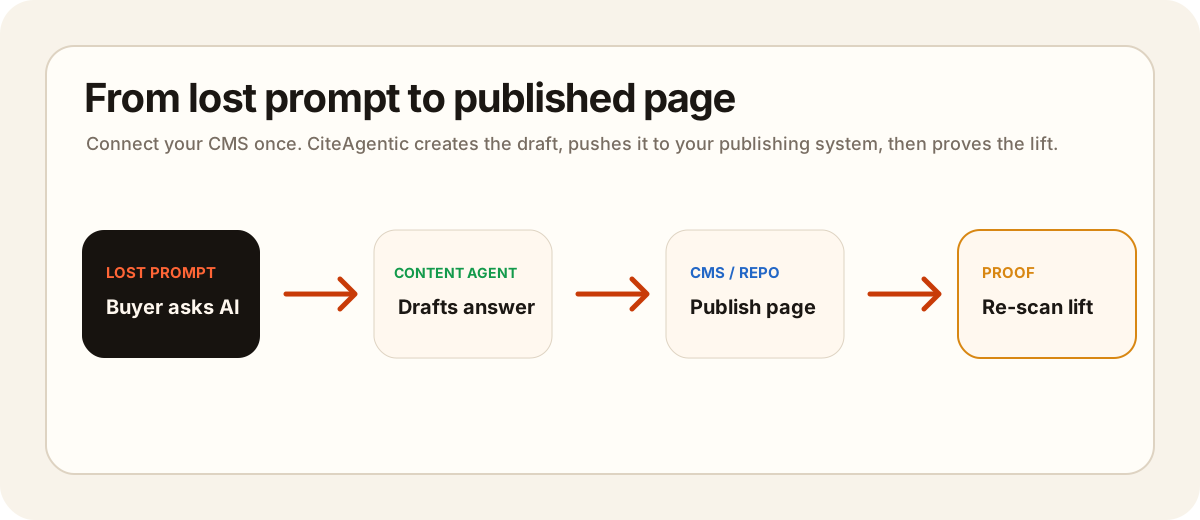
How it works
CiteAgentic commits your content as content/<slug>.md (the slug is generated automatically from the title) with title + date frontmatter. Because your site already builds from that repo, the commit triggers your host (Vercel, Netlify, Cloudflare Pages, GitHub Pages, …) to rebuild and deploy — so the post goes live with no extra step. CiteAgentic doesn't host your site; it pushes to the repo your site already deploys from.
What you'll need
- A GitHub repository that your website builds from.
- A personal access token with Contents: read & write on that repo.
Step 1 — Create a personal access token
We recommend a fine-grained token, scoped to just the one repo:
- In GitHub, click your avatar → Settings → Developer settings → Personal access tokens → Fine-grained tokens. (Direct link:
https://github.com/settings/personal-access-tokens/new.) - Give it a name and expiration, and set Resource owner to the account/org that owns the repo.
- Under Repository access, choose Only select repositories and pick your content repo.
- Under Permissions → Repository permissions, set Contents → Read and write (Metadata: Read is added automatically).
- Click Generate token and copy it — it starts with
github_pat_…and is shown once.
A classic token works too (https://github.com/settings/tokens/new → check the repo scope), but it grants access to all your repos, so the fine-grained token above is safer.
Step 2 — Connect it in CiteAgentic
- Open Site Settings → Publishing channels.
- Click + GitHub and fill in:
- Repository —
owner/repo - Branch — optional; defaults to the repo's default branch
- Folder path — where Markdown files are committed. Defaults to
content/. Point it at your generator's content directory (examples below). - Personal access token — the one you just created
- Repository —
- Click Test & connect.
Folder path by generator
| Generator | Typical folder path |
|---|---|
| Hugo | content/posts/ |
| Astro (content collections) | src/content/blog/ |
| Jekyll | _posts/ |
| Next.js / Eleventy | content/ or posts/ |
Publishing
- On demand: Share ▾ → Publish to your repo on any approved draft.
- Automatic: link the GitHub channel to a day in the content calendar and it commits on that date — your host deploys it the rest of the way.
Frequently asked questions
How is the filename / slug chosen?
Does committing make it live?
Fine-grained or classic token?
What if the folder doesn't exist yet?
Ready to connect?
Site Settings → Publishing channels → + GitHub. Add your repo, content folder, and a Contents:read-write token.